WordPress Documentation

How to Use the CrawlHunt WordPress Plugin

This guide walks users through installing the CrawlHunt WordPress plugin, connecting it to their CrawlHunt account, and running their first SEO audit directly from WordPress.

1

Add your WordPress site in CrawlHunt

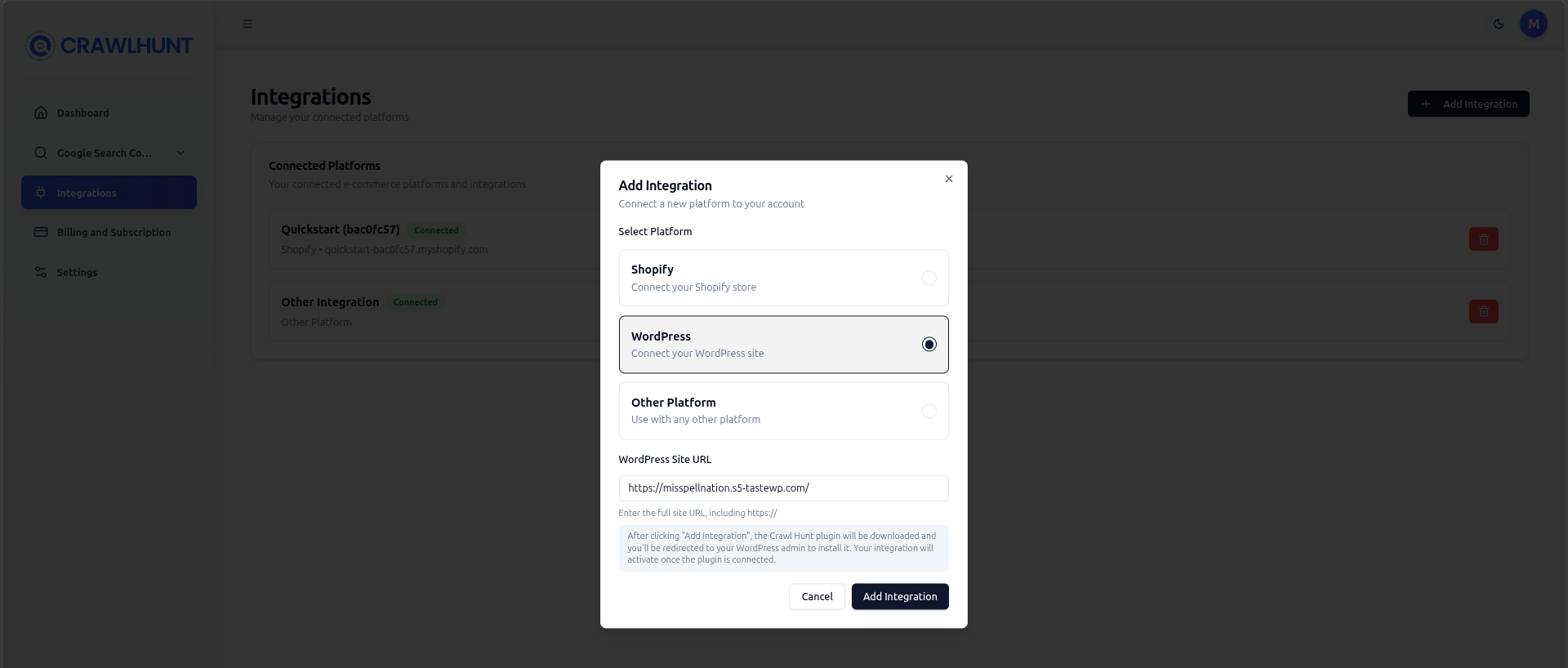
Go to the Integrations page in your CrawlHunt dashboard and click Add Integration. Select WordPress as the platform, enter your WordPress site URL, and click Add Integration to proceed.

  • Navigate to Integrations in your CrawlHunt dashboard
  • Select WordPress from the platform list
  • Enter your full WordPress site URL including https://
  • Click Add Integration — you will be directed to the plugin page on WordPress.org
2

Upload the plugin in WordPress

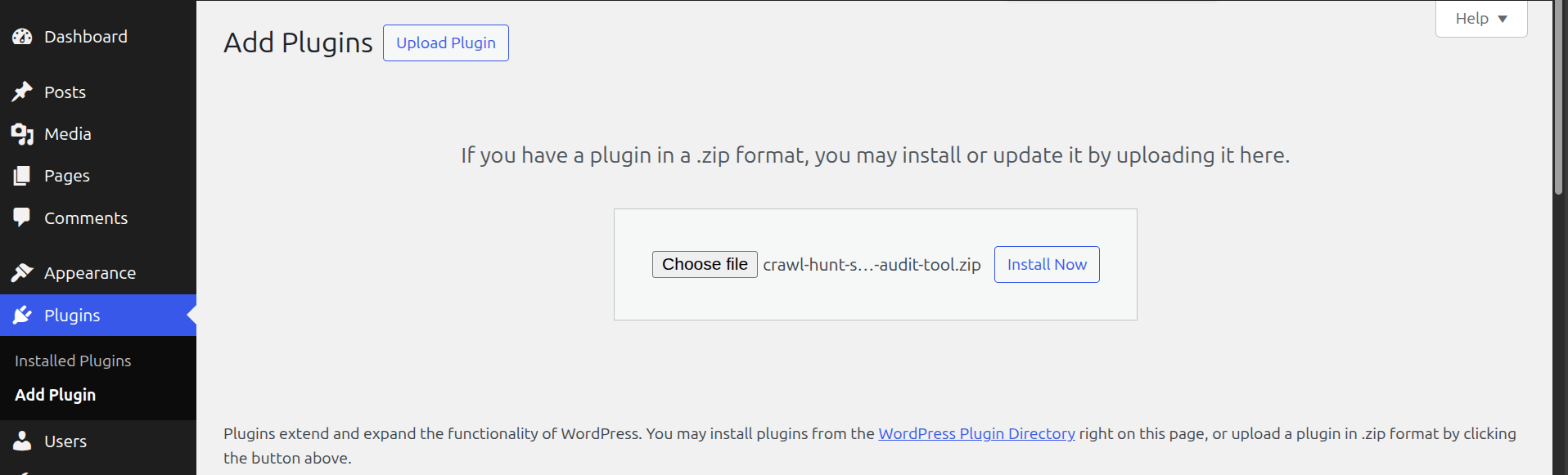
Install the plugin directly from your WordPress admin area by searching for CrawlHunt, or upload a downloaded ZIP file manually.

  • Open your WordPress admin panel
  • Navigate to Plugins > Add New
  • Search for "CrawlHunt" and click Install Now, or use Upload Plugin if you downloaded the ZIP
  • Click Install Now to begin the installation
3

Activate the plugin

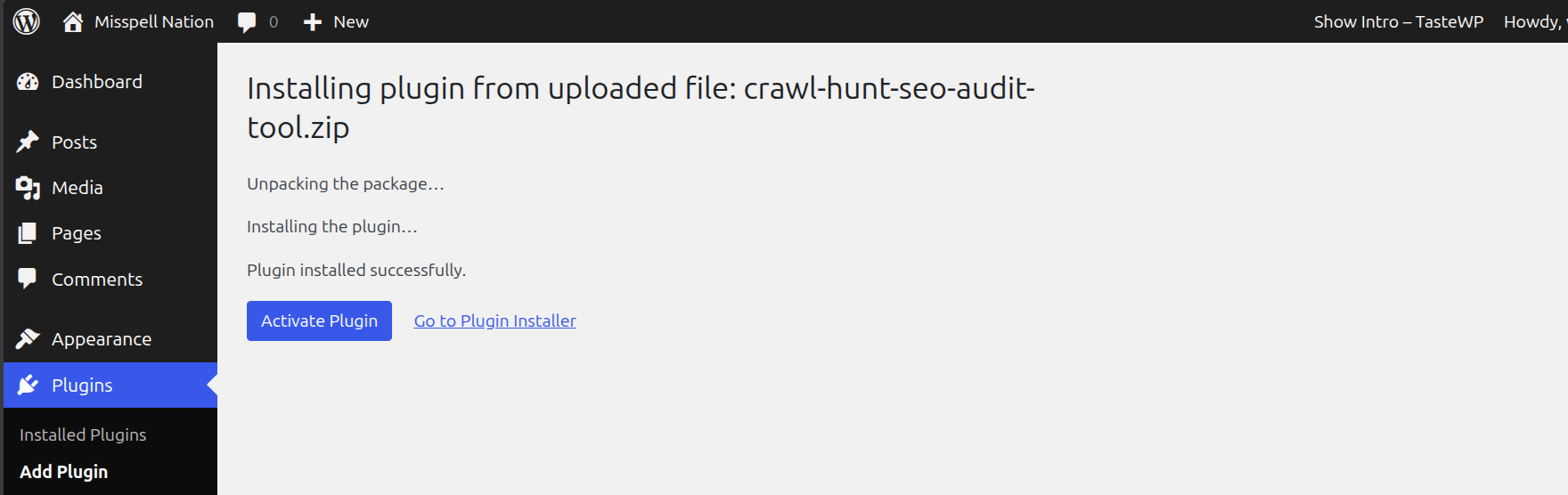
After WordPress finishes installing the plugin from the uploaded ZIP file, click Activate Plugin to enable CrawlHunt on your site.

  • Wait for WordPress to unpack and install the plugin
  • Click Activate Plugin once the installation is complete
4

Connect the plugin to your CrawlHunt account

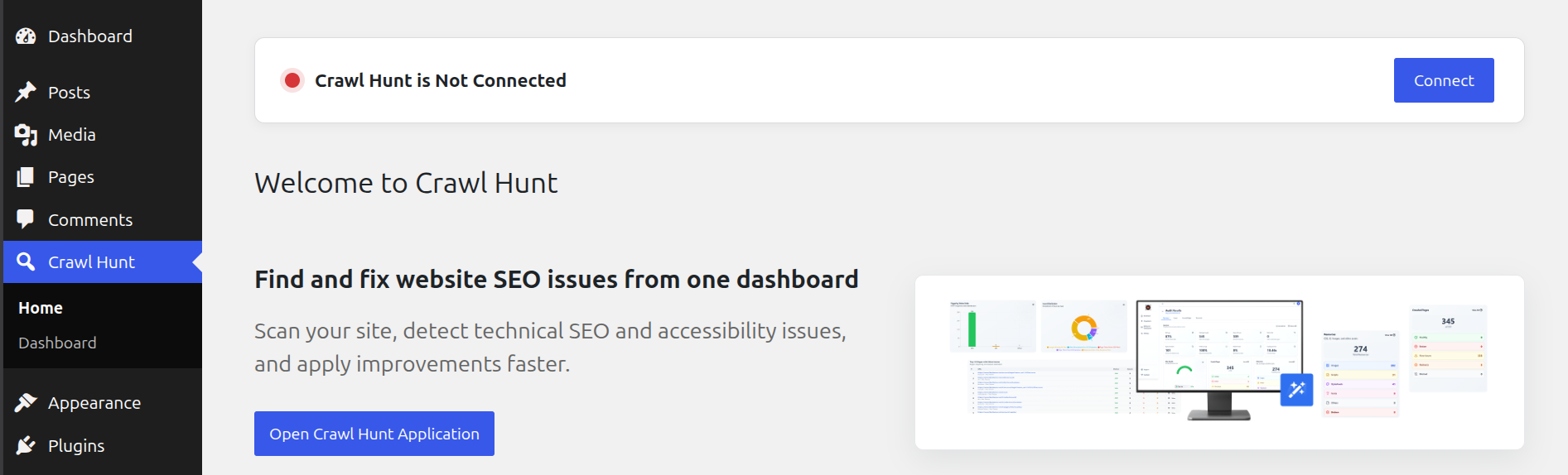
After activation, open the CrawlHunt menu item in the WordPress sidebar. The plugin will show a 'Crawl Hunt is Not Connected' status — click Connect to link it to your CrawlHunt account.

  • Click Crawl Hunt in the WordPress left sidebar
  • Click the Connect button on the plugin home screen
  • Complete the authorization to link your CrawlHunt account
5

View your crawl results

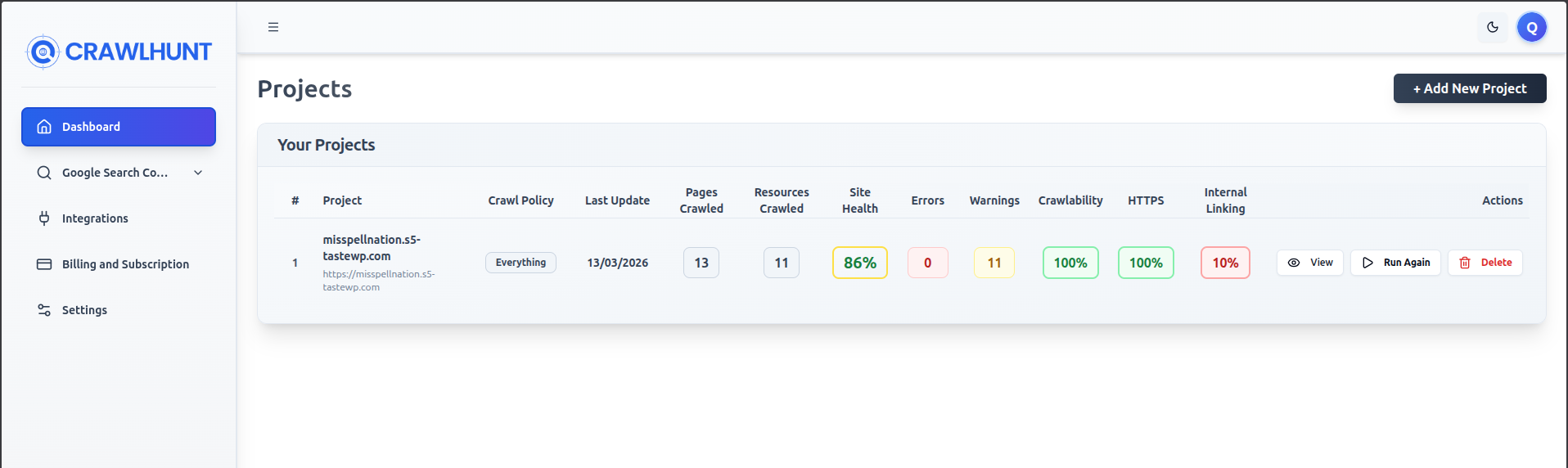
Once connected, CrawlHunt will automatically create a project for your site. Head to the Projects page in your CrawlHunt dashboard to see the crawl results, including site health score, errors, warnings, crawlability, HTTPS status, and internal linking score.

  • Open the CrawlHunt dashboard and go to Projects
  • Find your site listed under Your Projects
  • Review site health, errors, warnings, and crawlability metrics
  • Click Run Again to trigger a new crawl at any time
6

Review issues and apply fixes

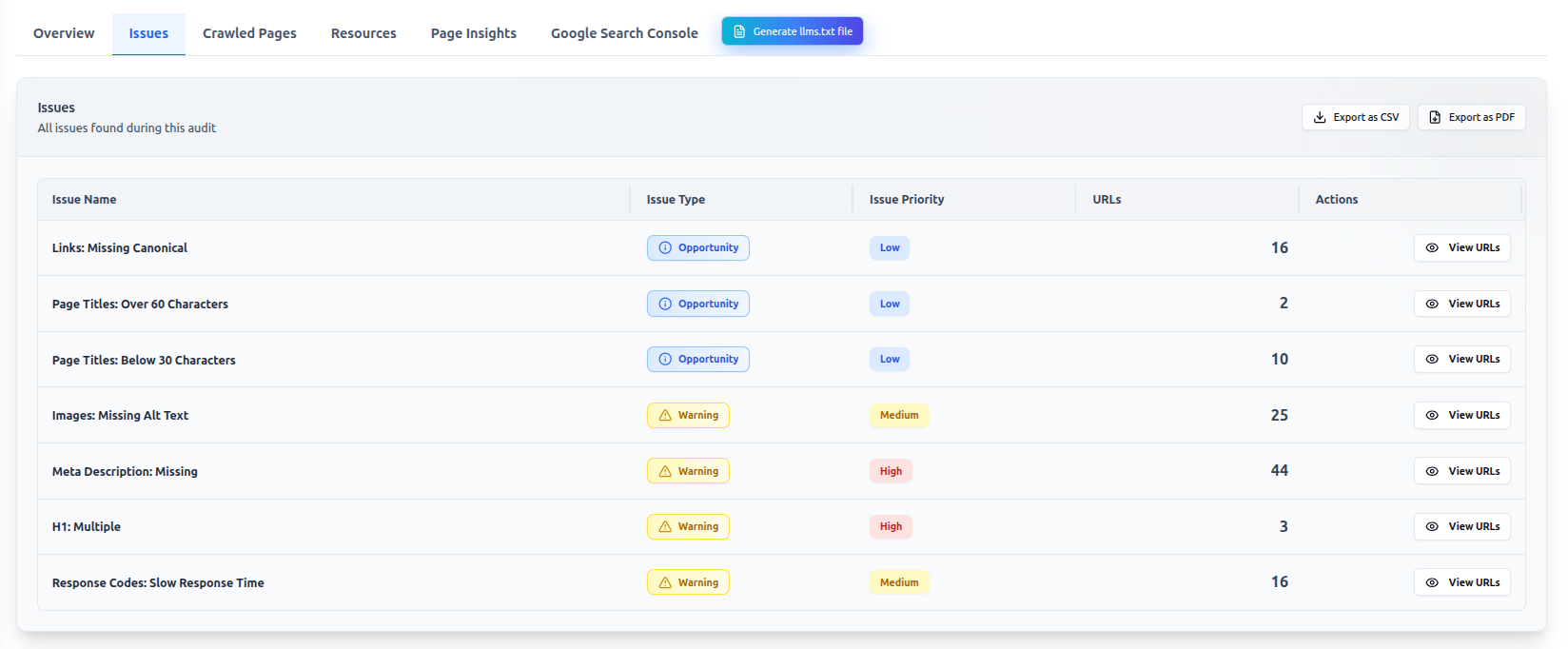
Click View on your project to open the audit results. Navigate to the Issues tab to see a full list of detected SEO issues categorized by type and priority, including missing meta descriptions, image alt text, canonical tags, and more.

  • Click View next to your project to open the audit report
  • Switch to the Issues tab to see all detected problems
  • Filter by issue type or priority to focus on what matters most
  • Apply recommended changes and rerun the audit to track improvements